
What It Does
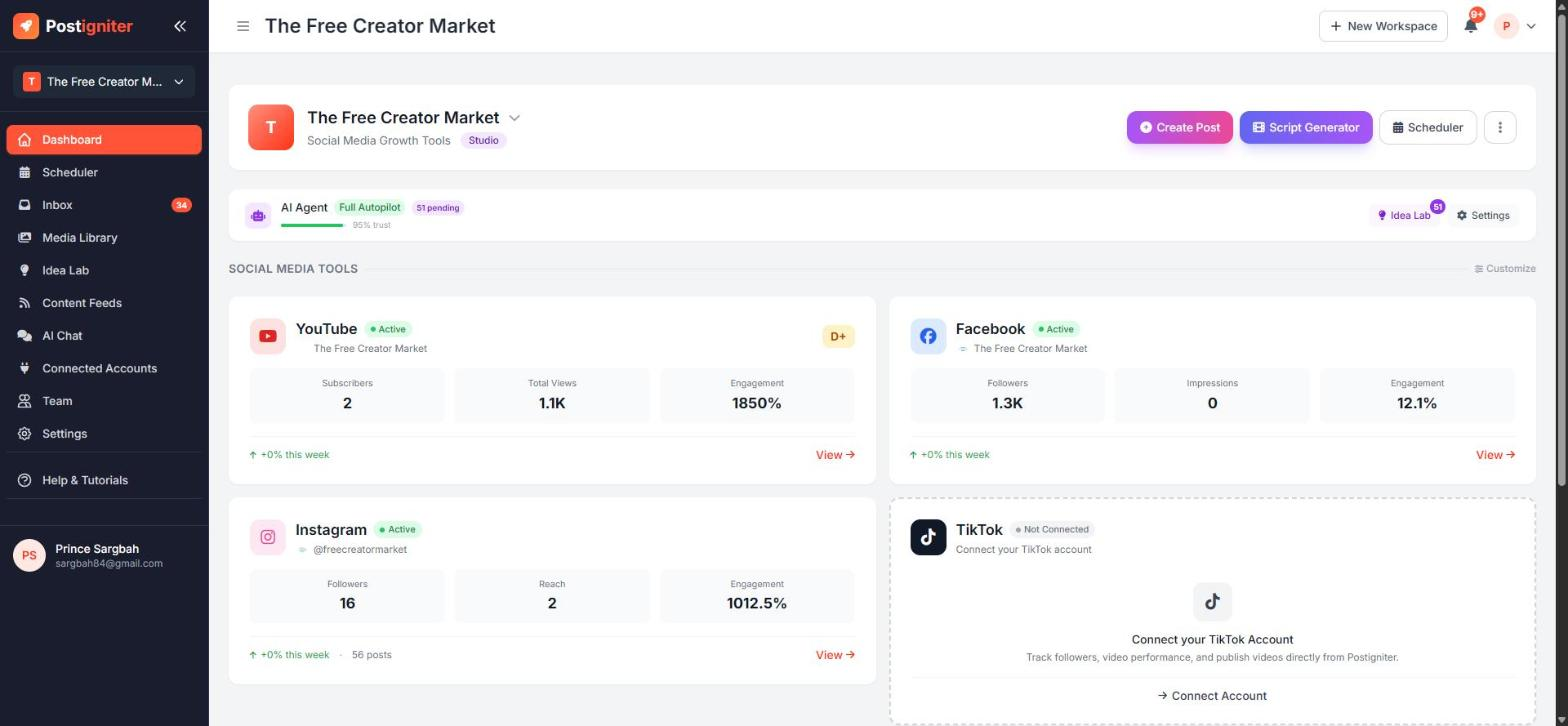
The workspace dashboard is the first screen you see after logging in. It brings together your brand, your AI agent and every connected social channel, with one-click access to create, schedule and analyse content. Each workspace has its own dashboard, so if you manage several brands you get a separate home for each one.
The Sidebar
The left sidebar takes you to every Pro feature:
- Dashboard — this overview page
- Scheduler — your content calendar
- Inbox — comments and direct messages from all your channels
- Media Library — your images and videos
- Idea Lab — AI-generated post ideas
- Content Feeds — turn blog posts and RSS feeds into social posts
- AI Chat — your workspace AI assistant
- Connected Accounts — link YouTube, Facebook, Instagram and more
- Team — invite collaborators
- Settings — notifications, timezone and billing (workspace owners only)
- Help & Tutorials — video walkthroughs and written guides
Click the « icon at the top of the sidebar to collapse it to icons only. The workspace switcher just below the logo lets you jump between your workspaces.
The Workspace Header
The header card shows your workspace name, niche and plan badge, plus the most-used actions:
- Create Post — opens the Post Creator
- Script Generator — writes a video script for Reels, TikTok or YouTube
- Scheduler — opens your content calendar
- ⋮ (More) — shortcuts to everything else
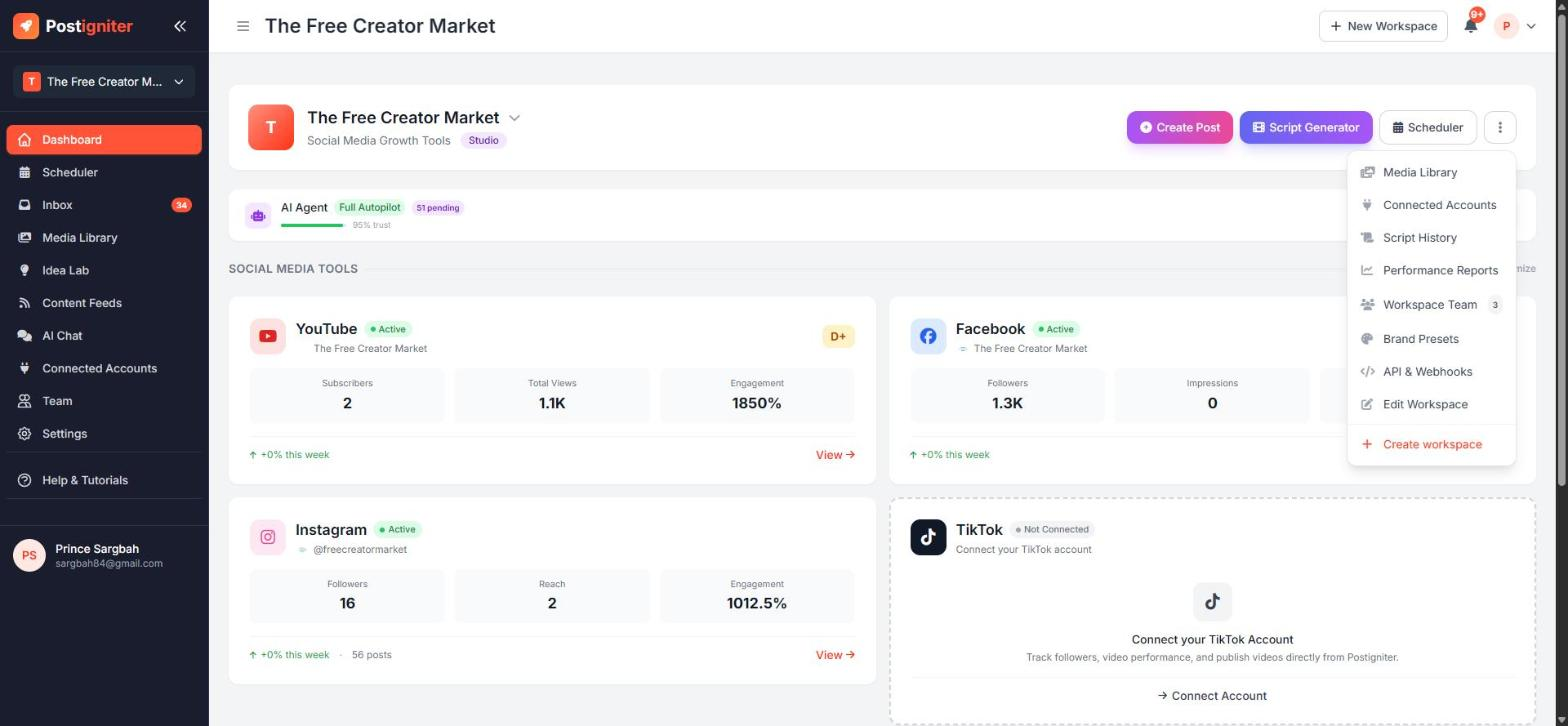
The More menu gives you quick access to the Media Library, Connected Accounts, Script History, Performance Reports, Workspace Team, Brand Presets, API & Webhooks and Edit Workspace. Use Edit Workspace to change your workspace name, description, niche and keywords.
The AI Agent Bar
Below the header, the AI Agent bar shows what your AI agent is doing right now. It shows the current automation level (for example Suggest Only), the agent's trust score and any ideas waiting for your review. Use Idea Lab to review ideas, or Settings to change how much the agent does on its own. See AI Agent & Automation Levels for details.
Social Media Tools
Each platform has a card:
- Connected platforms show live stats (followers, impressions or reach, engagement) and a View link to that platform's full analytics dashboard.
- Platforms that aren't set up yet show a Get Started or Connect Account button.
Click Customize (top right of the section) to hide the cards you don't use.
Help & Tutorials
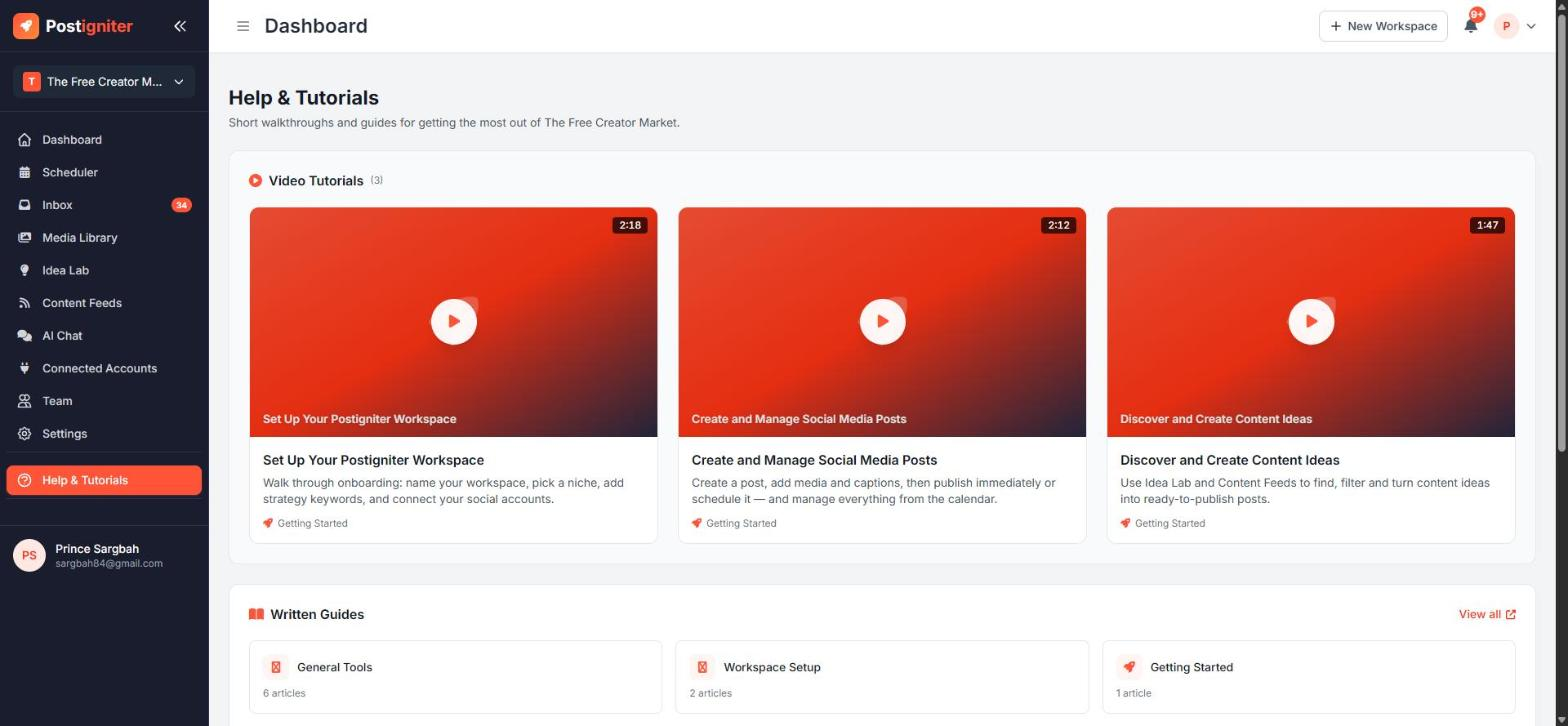
Help & Tutorials at the bottom of the sidebar opens short video walkthroughs of the core workflows. It also has links to every written guide, grouped by category.
Tips for Best Results
- Connect your accounts first. The dashboard, Idea Lab and AI agent all get much smarter once they can see your real posting history.
- Keep your niche and keywords current. Use ⋮ → Edit Workspace whenever your content focus changes. The AI uses them for every idea and caption it writes.
- Check the AI Agent bar daily when you're starting out. Reviewing ideas quickly is the fastest way to raise your trust score.