
Post Approval
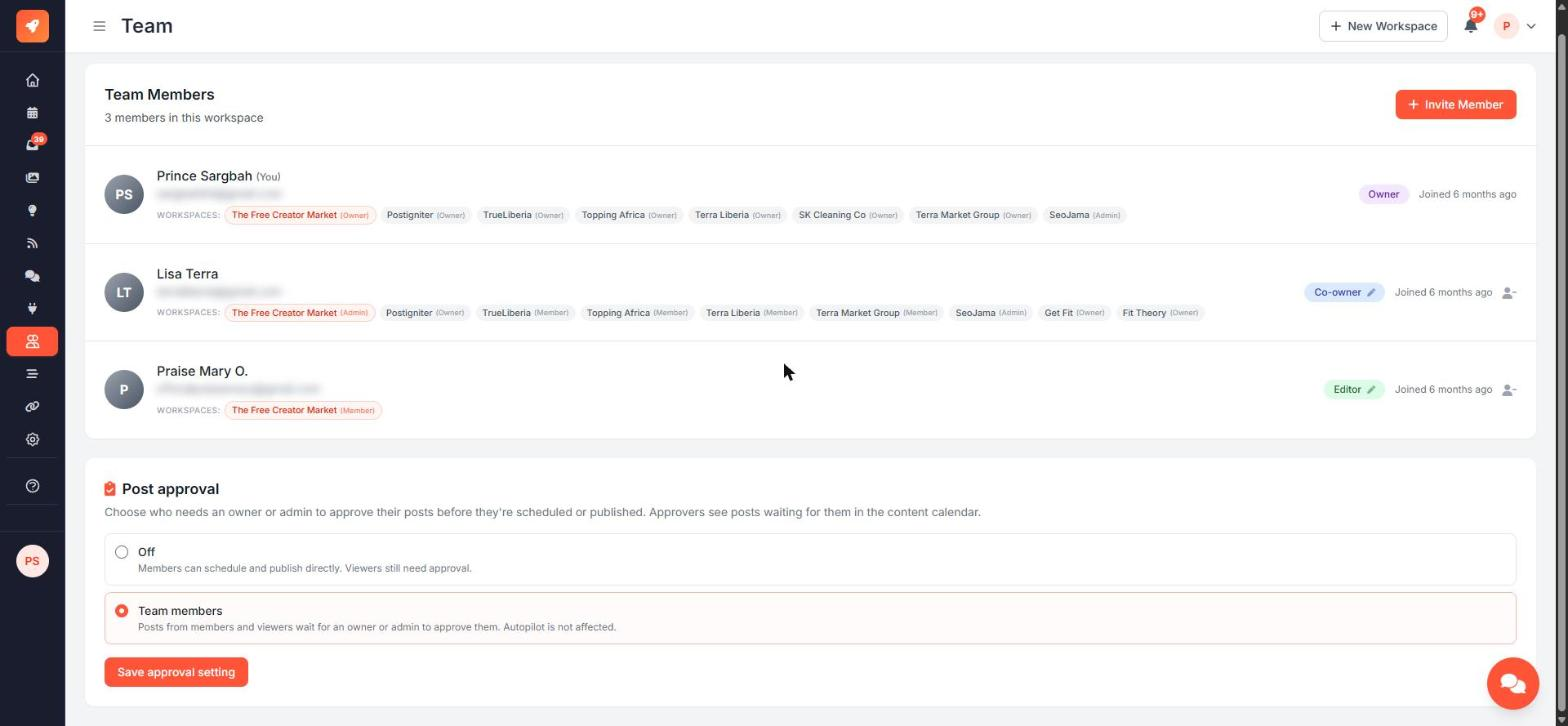
Post approval lets an owner or admin check a post before it goes out. When it's on, posts from team members wait in a review queue instead of being scheduled straight away.
Who needs approval
| Role | Approval off | Approval set to "Team members" | |---|---|---| | Owner | Never | Never | | Admin | Never | Never | | Member | No | Yes | | Viewer | Always | Always | | Full Autopilot (Level 3) | Never | Never |
Viewers always need approval, whatever the setting. Full Autopilot is never held for approval. It earns the right to post through its trust score, so turning approval on does not slow it down.
Turn approval on
- Open Team from the sidebar.
- Scroll to Post approval.
- Choose Team members.
- Click Save approval setting.
Only the workspace owner can change this setting.
What members see
When a member who needs approval finishes a post, the Schedule button in the post creator says Submit for Approval. The post stays a draft with an Awaiting approval badge, and the time they picked is saved with it.
Owners and admins get a notification, and the post appears first in the Drafts list on the calendar.
Approve or request changes
- Open the post from the notification, the Drafts list, or Search on the calendar.
- In the post preview, use the review panel:
- Approve & schedule schedules the post for the time the member asked for. If that time has already passed, or they asked for "as soon as possible", it is published now.
- Request changes asks you for a reason. The member gets your note and the post goes back to them as Changes requested.
Scheduling a waiting post any other way (dragging it on the calendar, the schedule window, or chat) also counts as approving it.
If someone edits an approved post
If a member edits a post after it was approved, it goes back to Awaiting approval and its scheduled time is cancelled until it is approved again. Edits by owners and admins keep the approval.
AI drafts
At automation Level 2, the AI agent writes drafts for you to review. They appear in the same review queue as members' posts. Approving or rejecting an AI draft also teaches the agent what you like.
Ask the AI chat
- "What's waiting for approval?"
- "Approve post 123"
- "Ask for changes on post 123: use the newer logo"
- "Submit post 123 for approval"
The chat follows your role. If you need approval, the chat can't schedule for you either.