
What It Does
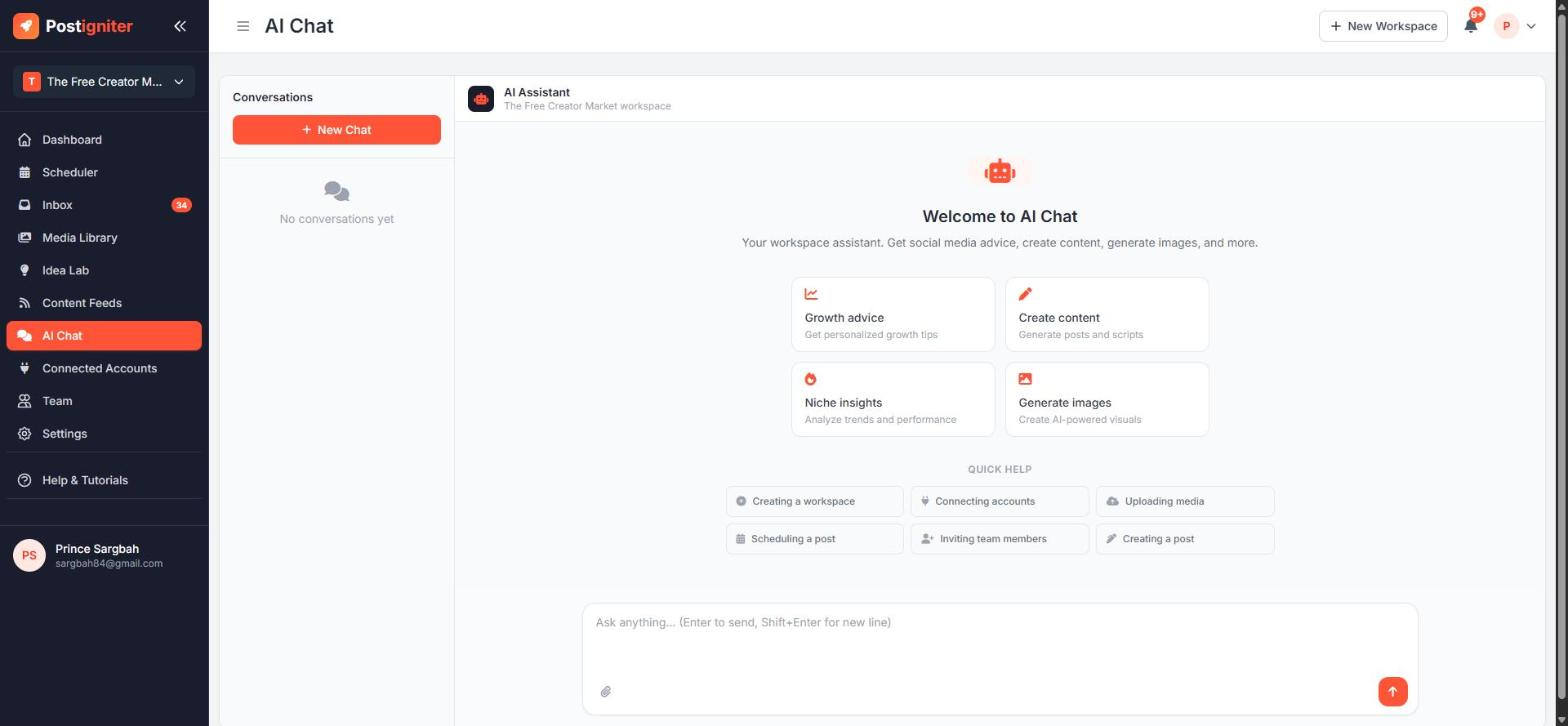
AI Chat is a workspace-aware assistant. It knows your niche, keywords, connected accounts and recent performance. You can ask it questions or have it do things for you. When it suggests an action, such as creating a post, it shows an action card that you confirm before anything happens.
Open it from AI Chat in the sidebar. A floating chat bubble is also available in the bottom-right corner of every other workspace page.
What You Can Ask It To Do
- Growth advice — "Why did my engagement drop last week?"
- Create content — "Write a Facebook post about our weekend event"
- Schedule posts — "Schedule that for Friday at 6pm"
- Generate images — "Create an image of a sunset over Monrovia beach"
- Write video scripts — "Write a 60-second TikTok script about street food"
- Find stock photos — "Find a photo of a busy market"
- Analyse your profile — "How is my Instagram doing?"
- Turn feed articles into posts — "Make posts from my latest blog article"
- Get help — "How do I invite a team member?" It searches these docs for you.
How to Use It
- Click New Chat, or pick one of the starter cards (Growth advice, Create content, Niche insights, Generate images).
- Type your message. Press Enter to send and Shift + Enter for a new line. Click the paperclip to attach a file.
- When the AI proposes an action, review the action card and click to run or cancel it.
- Your conversations are saved on the left so you can pick them up later. Delete any you no longer need.
The AI Remembers What You Teach It
When you tell the chat something lasting, such as "we never post on Sundays" or "our audience is mostly students", it saves it as a note. You can see and edit these notes under AI Settings → AI Notes & Learnings. The AI agent uses them for every future idea and caption.
Tips for Best Results
- Be specific. Include the platform, tone and goal in your request.
- Iterate in the same conversation. "Make it shorter" or "Add a call to action" work because the chat remembers context.
- Check action cards before confirming, especially for scheduling. They show exactly what will be created and when.