
What It Does
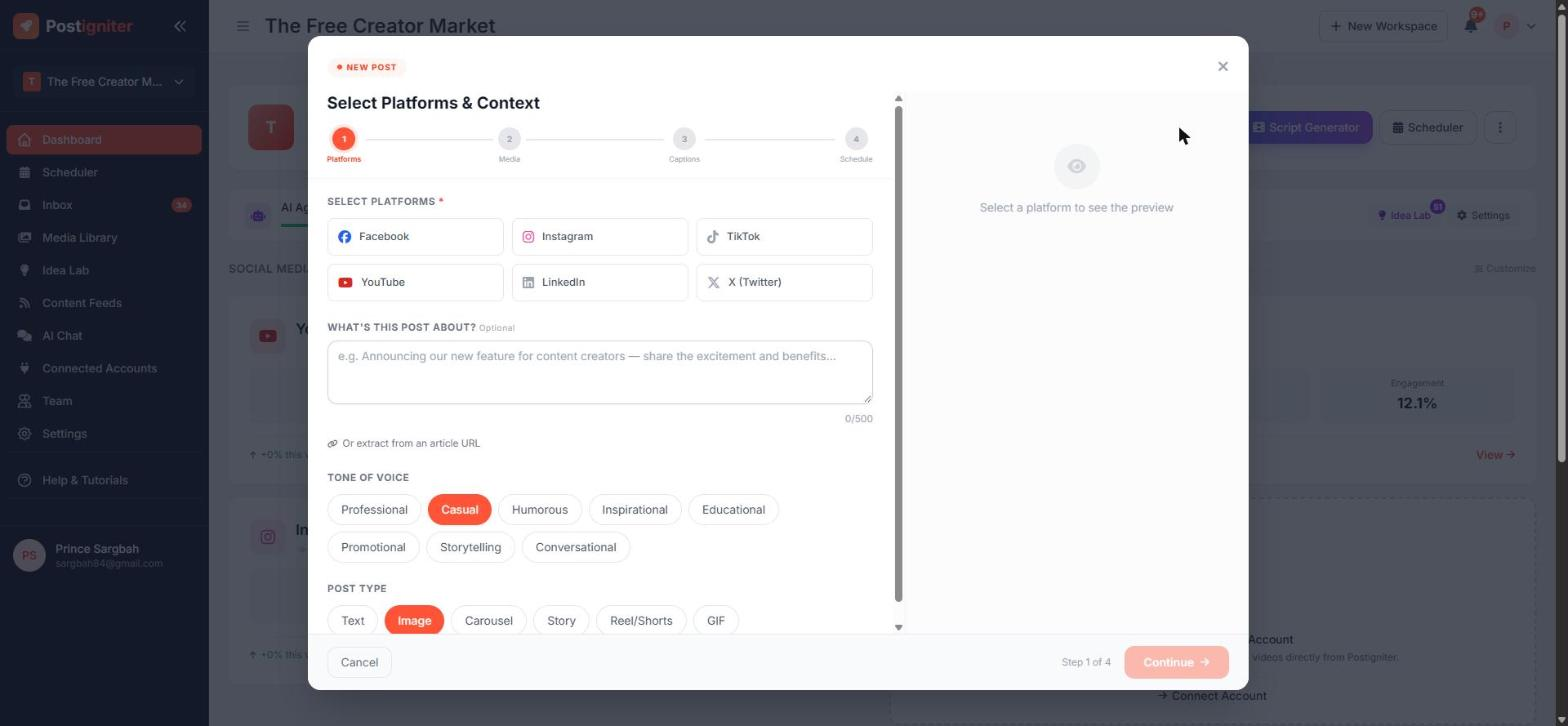
The Post Creator is where you build a single post for one or more platforms. You set up the post once, and the AI writes a caption for each platform. Then you publish right away, schedule it for later, or save it as a draft.
You can open it from:
- Create Post on the dashboard
- Create Post in the Scheduler
- any platform dashboard
- Create draft on an idea in the Idea Lab
Your work auto-saves as a draft, so you can close it and come back later.
How to Use It
Step 1 — Platforms & Context
- Select platforms: Facebook, Instagram, YouTube, TikTok, LinkedIn or X (Twitter). The preview on the right updates for each platform you pick.
- What's this post about? (optional) — describe the post in a sentence or two. You can also click Or extract from an article URL to base the post on a blog article.
- Tone of voice: Professional, Casual, Humorous, Inspirational, Educational, Promotional, Storytelling or Conversational.
- Post type: Text, Image, Carousel, Story, Reel/Shorts or GIF. Only the types that all your selected platforms support are available.
- Click Continue.
Step 2 — Media
Add images or video in any of these ways:
- Upload from your device
- Media Library — pick something you've already uploaded
- Stock photos — search free stock images
- GIF search — for GIF posts
- Canva — import a design (requires a connected Canva account)
For video posts you can also choose a thumbnail, either a frame from the video or an uploaded image. Drag items to change their order in a carousel.
Step 3 — Captions
The AI writes a caption for each platform, matched to its length limits and style. You can edit any caption by hand, click Enhance to polish it, or Regenerate for a fresh version. You can also apply one of your Daily Ideas.
Step 4 — Schedule
Choose how to finish:
- Publish now — posts right away.
- Schedule — pick one of the smart time slots (up to five per platform, based on when your audience is most active) or choose your own date and time.
- Save draft — keep it in your Drafts to finish later.
Tips for Best Results
- Give the AI context. Even one sentence in What's this post about? makes the captions much more specific.
- Use the live preview to see how your post will look on each platform before you publish.
- Pick smart slots over guesses. They're based on your own engagement history once your accounts are connected.
- X (Twitter) posts are draft-only for now. Save them and copy the text into X when you're ready.