
Overview
Your Postigniter account gives you access to all tools, your generation history, and your workspace. This guide covers common account management tasks.
Updating Your Profile
- Log in and click your avatar or name in the top navigation.
- Navigate to Settings or Account Settings.
- Update your display name, email address, or profile photo as needed.
- Click Save Changes.
Changes to your email address may require re-verification via a confirmation link sent to your new email.
Changing Your Password
- Go to Settings → Security (or Account Settings).
- Click Change Password.
- Enter your current password, then your new password twice to confirm.
- Click Update Password.
If you signed up with Google or Facebook and don't have a password set, you'll see a Set Password option instead. Setting a password lets you log in with email in addition to your social login.
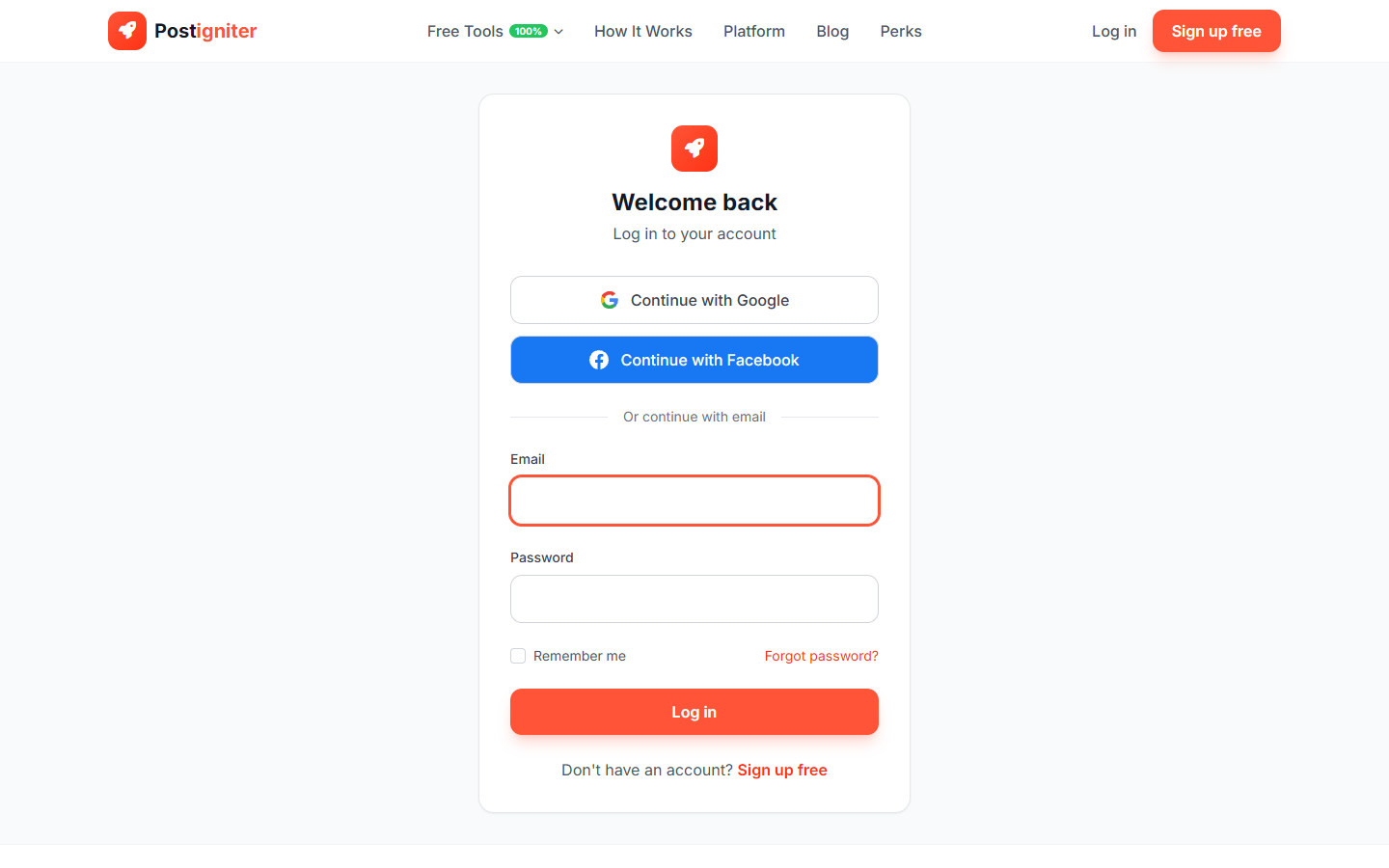
If you forgot your password, use the Forgot Password link on the login page. A reset link will be emailed to your registered address.
Two-Factor Authentication (2FA)
Two-factor authentication adds an extra layer of security to your account. When enabled, signing in with your email and password also requires a one-time verification code. Logins via Google or Facebook bypass 2FA, since those providers already handle their own verification.
Sign-in methods
You can enable either method — or both at the same time — so one serves as a backup for the other.
- Authenticator app (recommended): Use Google Authenticator, 1Password, Authy, Microsoft Authenticator, or any TOTP-compatible app. Codes are generated on your device and work offline.
- Email verification: Postigniter emails a 6-digit code to your registered email each time you sign in.
Turning on 2FA
- Go to Settings → Two-Factor Authentication (or open Manage from the 2FA card on your settings page).
- Choose a method and click Set up or Turn on.
- For the authenticator app, scan the QR code with your app (or paste the setup key), then enter the 6-digit code it displays.
- For email verification, enter the 6-digit code we send to your inbox.
- Once verified, 2FA is active on your account.
If you'd like a backup, repeat the process for the other method. Either can be used when signing in.
Recovery codes
When you enable 2FA for the first time, Postigniter generates 8 one-time recovery codes. Save these somewhere safe (a password manager is ideal) — they're the only way to get back into your account if you lose access to both sign-in methods.
Each code works once. You can regenerate a fresh set at any time from the Two-Factor Authentication page — regenerating invalidates the old codes.
Signing in with 2FA
After entering your email and password, you'll see a verification screen:
- If you have one method enabled, enter the code from that method.
- If you have both enabled, the screen defaults to your preferred method. You can tap Use [other method] instead to switch.
- You can also use a recovery code if neither method is available.
Once a device successfully completes the 2FA challenge, Postigniter trusts it for 30 days — you won't be asked again on the same browser during that period. Clearing cookies, disabling 2FA, or toggling a method will reset that trust.
Choosing a default method
If you have both methods enabled, you can set one as the default. Go to the Two-Factor Authentication page and click Make default next to the method you prefer. That's the one shown first at sign-in.
Turning off 2FA
- To turn off a single method, enter your password next to that method and click Turn off. The other method stays active.
- To turn off 2FA completely, use the Turn off all 2FA option at the bottom of the page. This also invalidates your recovery codes.
Troubleshooting
- Lost your authenticator device: Use your email method (if enabled) or a recovery code. Once signed in, turn off the authenticator and set it up again on your new device.
- Not receiving email codes: Check your spam folder. Email codes expire after 10 minutes — request a new one with Resend code.
- Lost both methods and recovery codes: Contact support — we can verify your identity and help you regain access.
Email Notifications
Manage which email notifications you receive from your account settings. You can opt out of marketing emails while keeping transactional notifications (receipts, password resets, workspace invitations) active.
Workspaces
Every Postigniter account operates within a workspace. Your workspace organizes your social profiles, generation history, and collaborators. To manage workspace settings:
- Go to Workspace Settings from the sidebar or top navigation.
- Update the workspace name, invite team members, or manage member roles (Owner, Admin, Member).
Deleting Your Account
To permanently delete your account, go to Settings → Account and look for the Delete Account option. Account deletion is permanent and removes all your data, generations, and workspace history. If you're on an active subscription, cancel it first to avoid future charges.
Getting Help
If you encounter any account issues, use the Help section in the app or visit the documentation for self-service guidance.