
Bulk CSV Upload
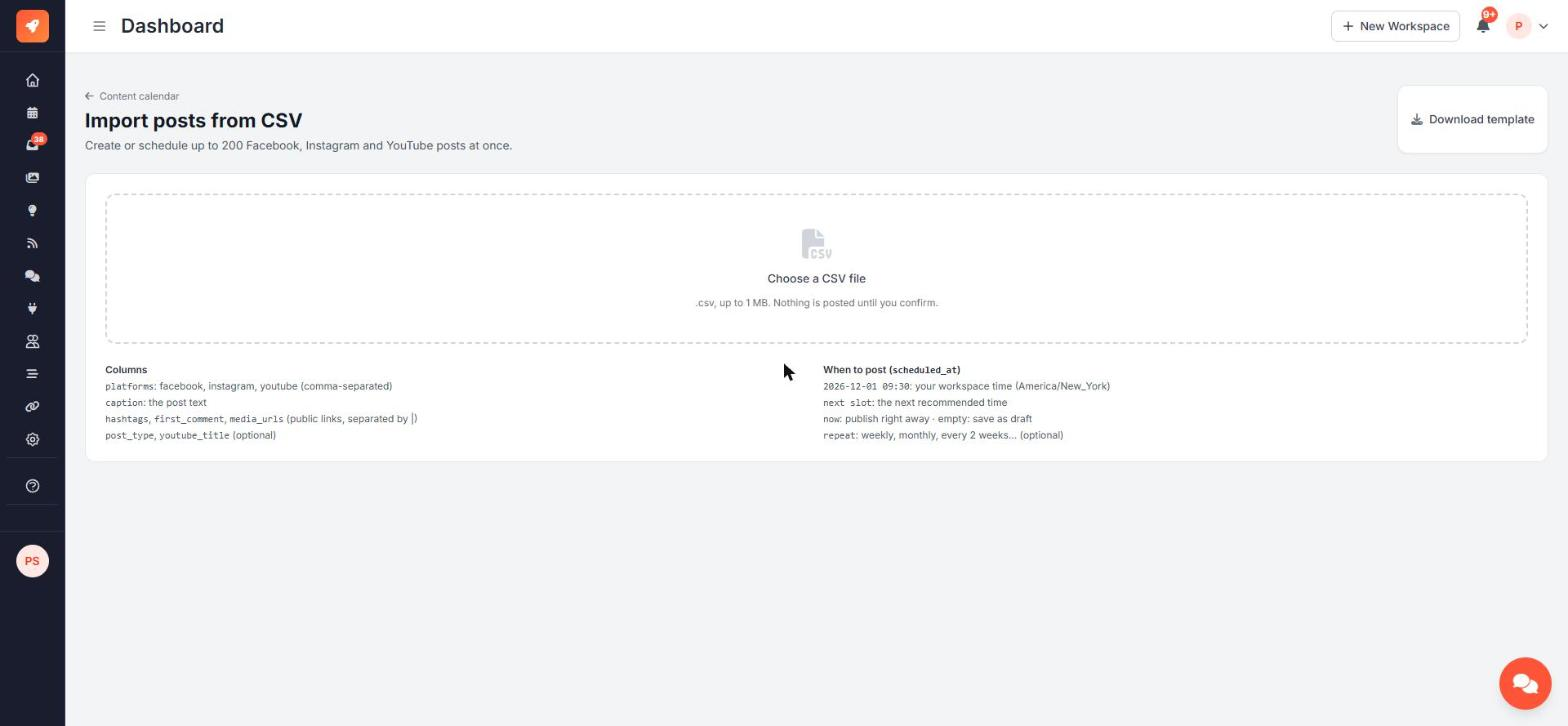
Plan your posts in Excel or Google Sheets, then import them all at once. Postigniter checks every row and shows you a preview. Nothing is created until you confirm.
Open the importer
On the Scheduler, click Import CSV.
Prepare your file
Click Download template to get a CSV with the right columns and example rows.
| Column | What to put in it |
|---|---|
| platforms | facebook, instagram, youtube (comma-separated; fb, ig and yt work too) |
| caption | The post text |
| hashtags | Optional, e.g. #tips #marketing |
| first_comment | Optional. Facebook and Instagram only. See First Comment |
| media_urls | Optional public links to images or video. Separate several with \| |
| post_type | Optional, e.g. image, carousel, video |
| scheduled_at | When to post (see below) |
| youtube_title | Required for YouTube |
| repeat | Optional: daily, weekly, monthly or e.g. every 2 weeks |
When to post (scheduled_at)
| Value | Result |
|---|---|
| 2026-12-01 09:30 | Scheduled at that time in your workspace time zone |
| next slot | Scheduled at your next recommended time from the Smart Scheduler |
| now | Published as soon as the import runs |
| empty | Saved as a draft |
Use the YYYY-MM-DD HH:MM format. Dates like 02/12/2026 are rejected because it's unclear whether they mean 2 December or 12 February. Posts can be scheduled up to 365 days ahead.
Limits
- Up to 200 rows and 1 MB per file
- Comma- or semicolon-separated files both work, including files saved from Excel
- TikTok and LinkedIn aren't supported in CSV imports yet
Upload and check the preview
- Click Choose a CSV file and pick your file.
- Postigniter checks every row. Rows with problems show the reason, for example:
- "Not supported for bulk posting: tiktok."
- "Couldn't read the time "02/12/2026 10:00". Use YYYY-MM-DD HH:MM…"
- "Couldn't read the repeat "fortnightly-ish"."
- "Posts can be scheduled at most 365 days ahead."
- "No instagram account is connected to this workspace."
- Fix the file and upload it again, or continue with the valid rows.
- Click Import N posts. A progress bar shows the import, then a summary of what was created.
Your recent imports are listed on the same page.
Approval and team members
If you need approval, scheduled rows are sent for approval instead of being scheduled. Reviewers get one summary notification for the whole import, not one per post.
Ask the AI chat
"How do I upload posts from a spreadsheet?" The chat explains the format and links to the importer. It can also turn a pasted list of posts into CSV rows for you.