
What It Does
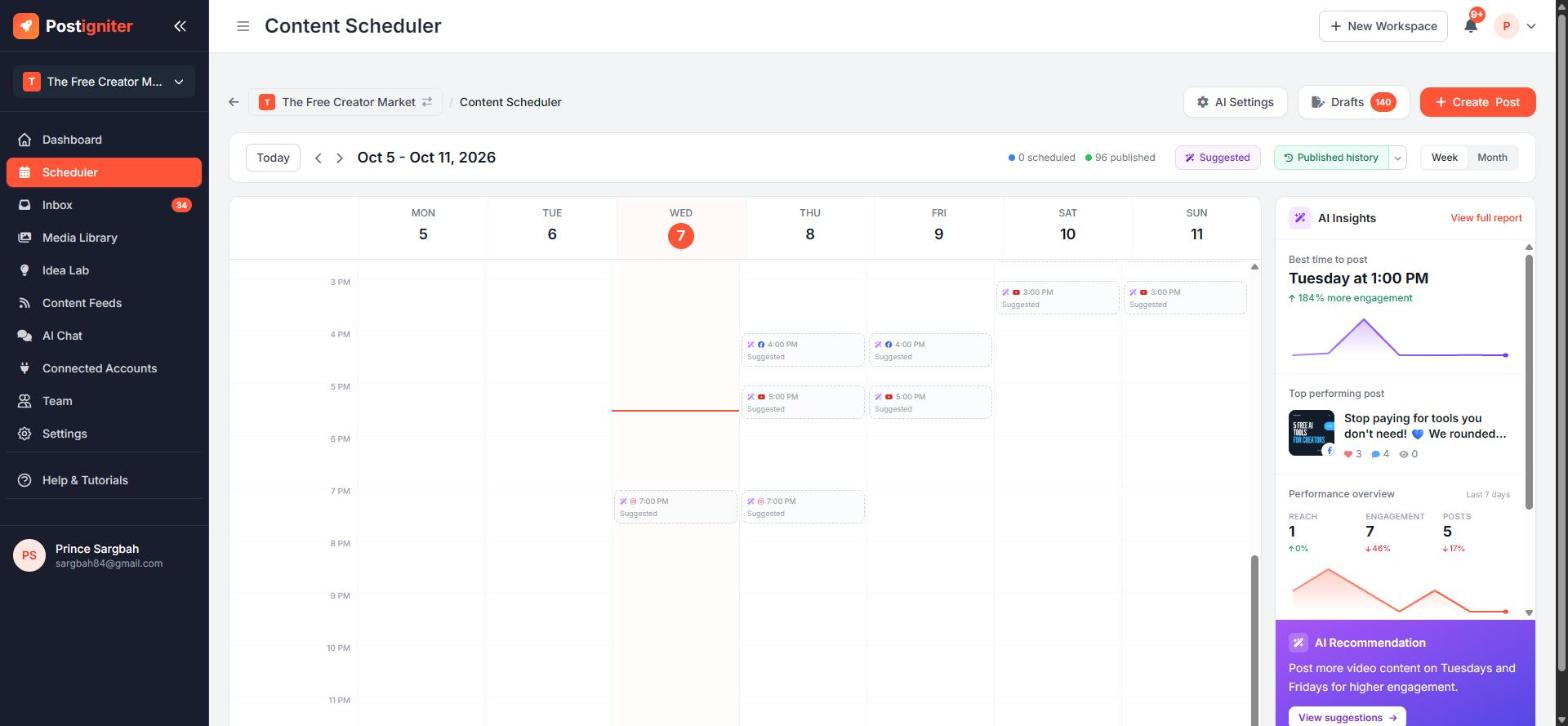
The Content Scheduler is your content calendar. It shows every scheduled and published post across your connected platforms. You can drag posts to new times, publish on demand, and see AI insights about when your audience is most engaged.
Open it from Scheduler in the sidebar or the Scheduler button on the dashboard.
Finding Your Way Around
- Today / ‹ › — jump to the current week or move backwards and forwards.
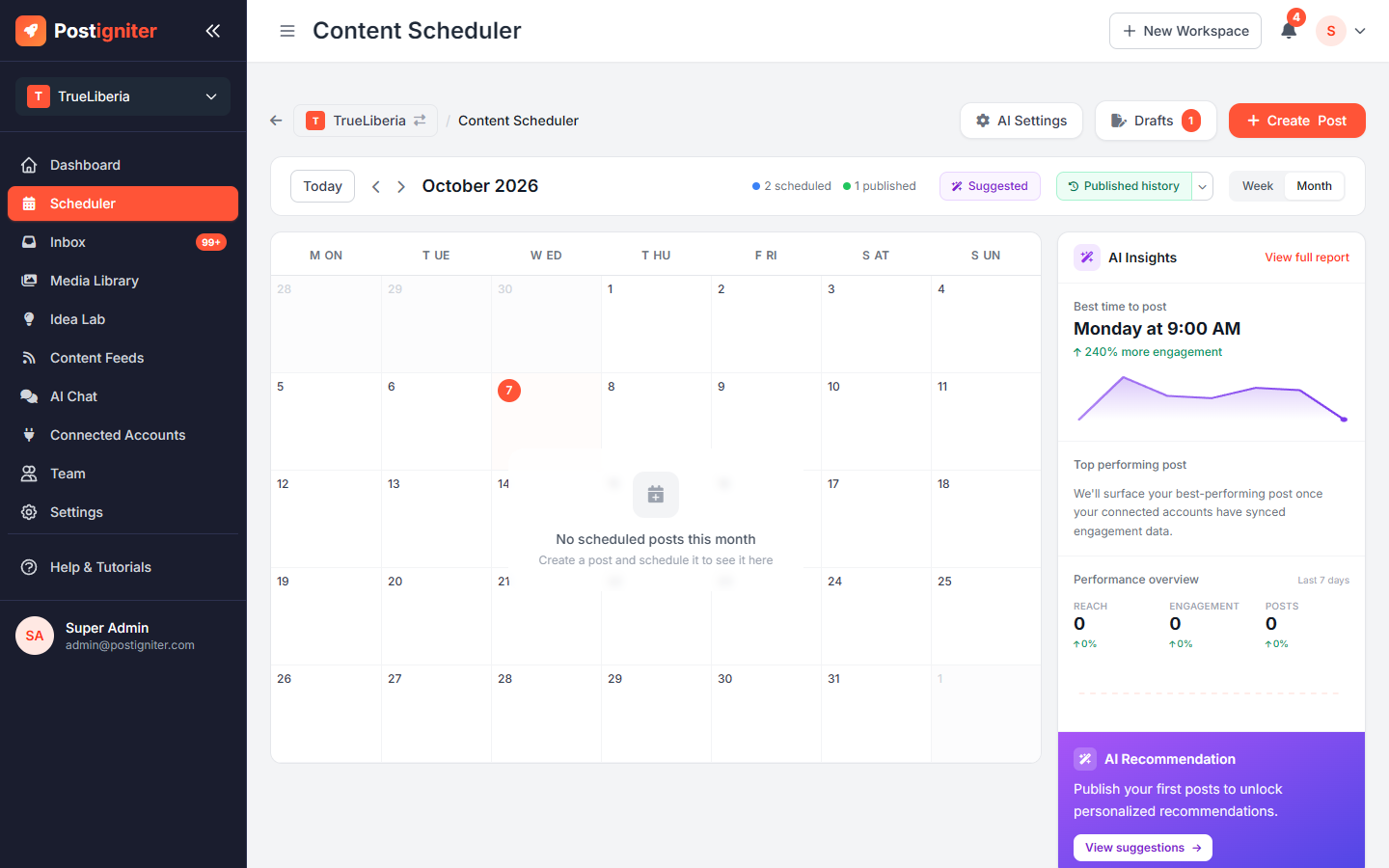
- Week / Month — switch between a detailed hourly view and a month overview.
- Suggested — shows AI-recommended posting slots on the calendar.
- Published history — also shows posts you published directly on Facebook, Instagram or YouTube, so you see your full posting rhythm. Use the dropdown arrow to filter by platform.
- Drafts — opens the sidebar of unscheduled drafts.
- Create Post — opens the Post Creator.
Scheduling and Rescheduling
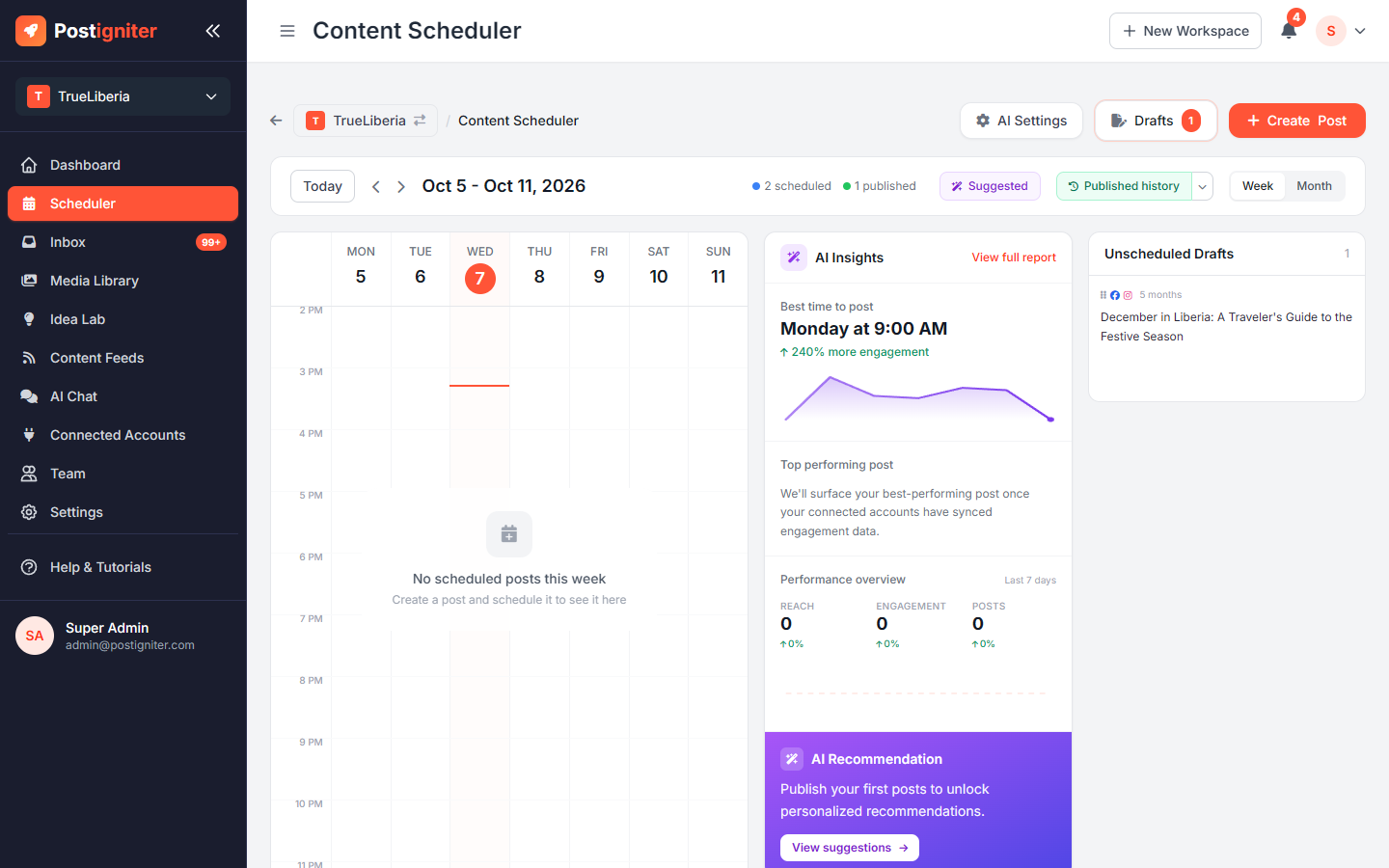
- Schedule a draft: open Drafts and drag a draft onto a time slot on the calendar.
- Reschedule: drag any scheduled post to a new slot. If the AI knows a better time, you'll see an option to apply the better slot.
- Open a post to preview it per platform, edit the caption, change its media, regenerate a caption, publish it now, cancel the schedule or delete it.
- Published posts open with their latest stats. Click Refresh stats to update them, or Create similar to start a new post based on one that worked.
AI Insights
The panel on the right summarises your recent performance:
- Best time to post — the day and time your posts get the most engagement
- Top performing post — your best recent post
- Performance overview — reach, engagement and number of posts for the last 7 days
- AI Recommendation — one concrete next step
View full report opens your Performance Reports.
Tips for Best Results
- Set your timezone in Settings → Timezone so slots line up with your audience.
- Keep a few drafts ready so you can fill empty days by dragging and dropping.
- Turn on Published history to spot gaps where you haven't posted, including posts made outside Postigniter.