
Snippets and Templates
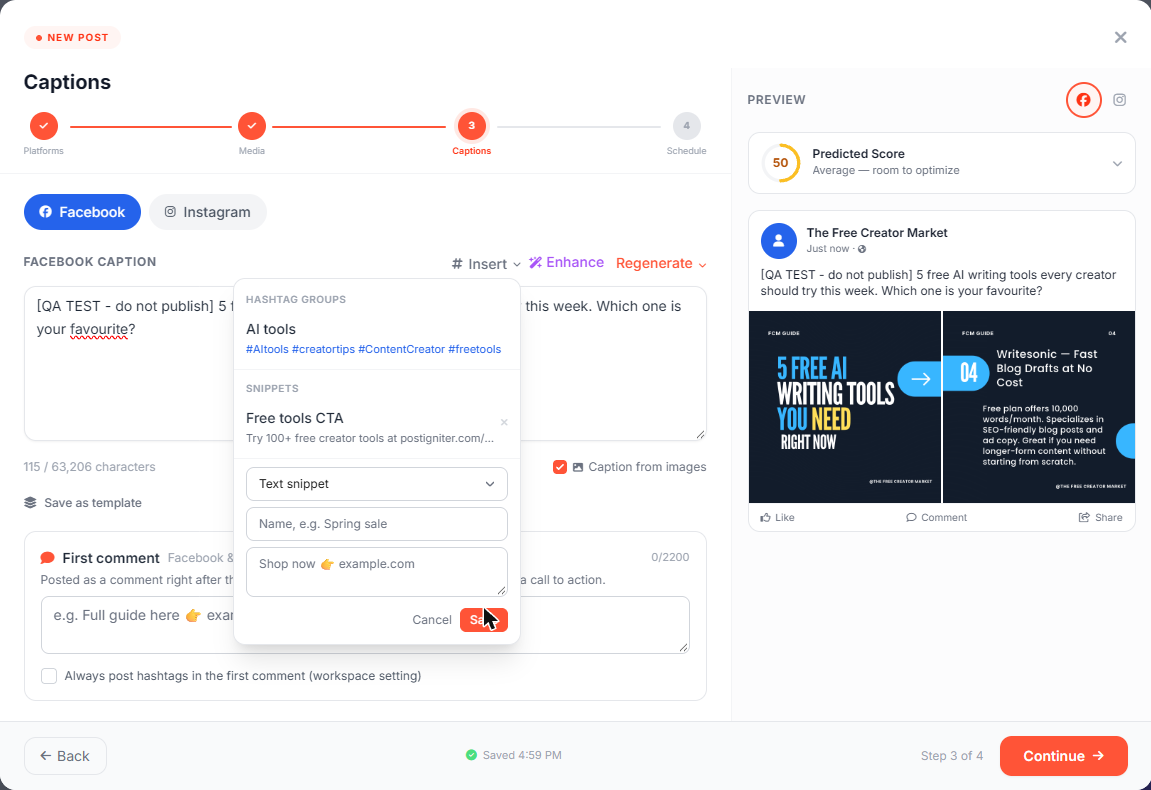
Hashtag groups and text snippets
Snippets are pieces of text you use again and again:
- Hashtag groups: sets of hashtags for a topic, e.g. "AI tools"
- Text snippets: calls to action, links or sign-offs, e.g. "Try our free tools at…"
Create a snippet
- In the post creator, go to the Captions step.
- Click Insert above the caption.
- Click + New hashtag group or snippet.
- Choose Hashtag group or Text snippet, give it a name and enter the text.
- Click Save. It's now in the Insert menu for everyone in the workspace.
Hashtags are tidied up for you: a # is added where missing and duplicates are removed, ignoring capitals.
Use a snippet
Open Insert and click the snippet:
- A hashtag group is added to that platform's hashtags. If it would go over the platform's hashtag limit, the extra tags are left out and you'll see a message.
- A text snippet is added to the end of the caption.
The hashtags you set in AI Settings appear as a built-in Preferred group.
To delete a snippet, click the × next to it in the Insert menu. You can delete your own snippets; owners and admins can delete any.
Post templates
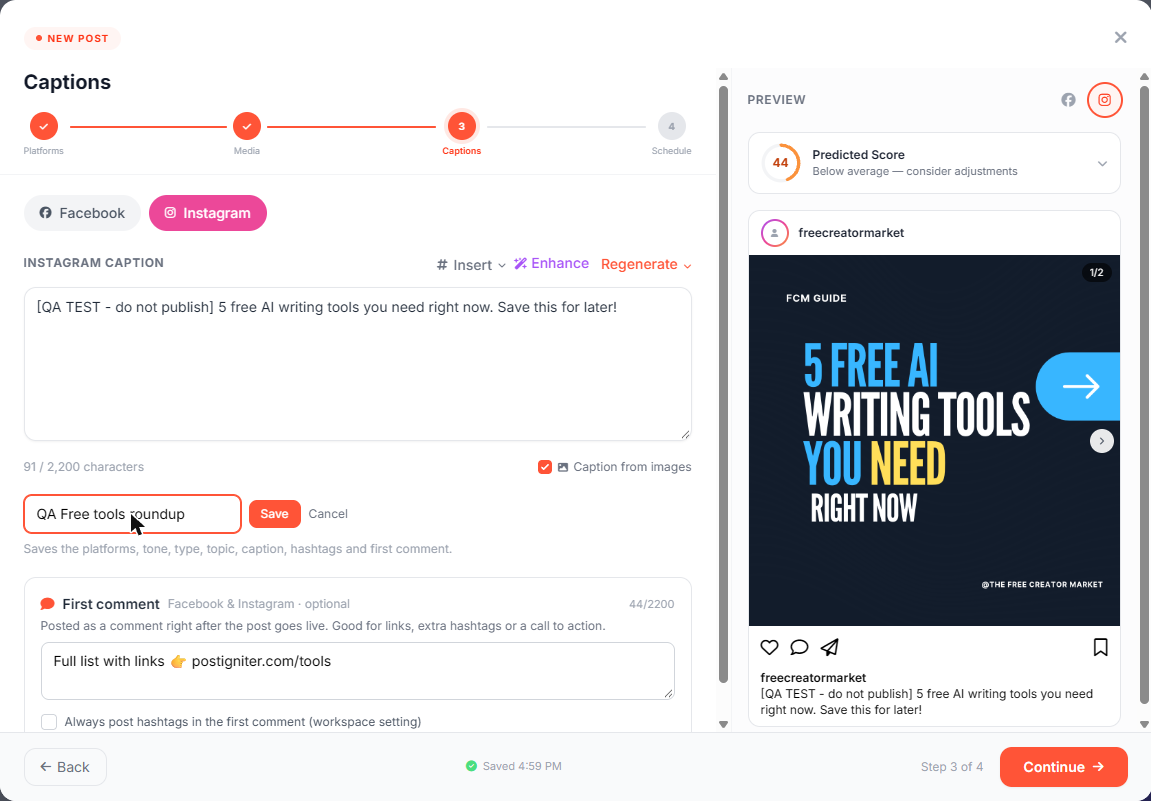
A template saves a whole post recipe: platforms, tone, post type and topic, plus the captions, hashtags and first comment.
Save a template
- On the Captions step, click Save as template.
- Give it a name and click Save.
Start a post from a template
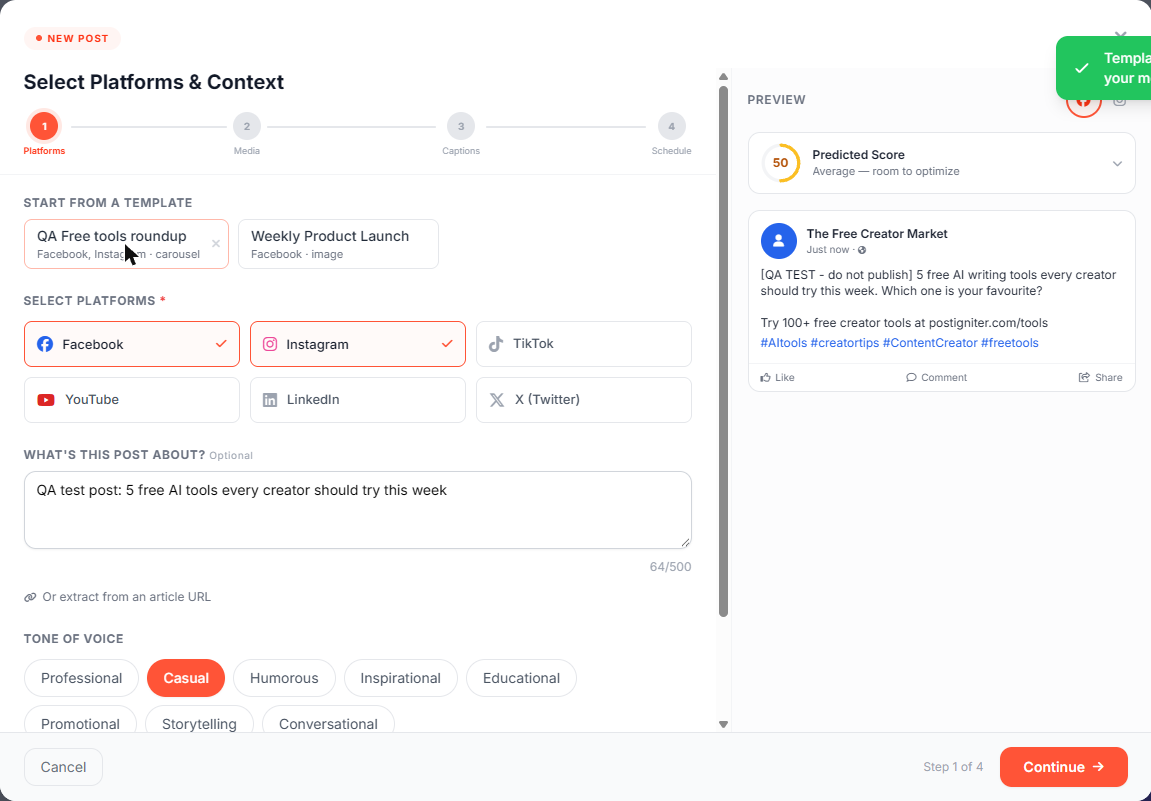
When you click Create Post, your templates appear under Start from a template on the first step. Click one to fill in the platforms, topic, captions, hashtags and first comment. Then add media and change anything you like.
Snippets, templates and the AI
The AI chat, Idea Lab and Autopilot see your hashtag groups, snippets and templates as your house style.
Ask the AI chat:
- "Save a hashtag group called Creator growth with #creatoreconomy #growthtips"
- "Create a post from the Weekly Product Launch template about our new feature"